Studio signs in first
Sign in on the streaming PC so a cloud profile exists. Get Studio from Downloads. The Producer tab lights up from that profile, or live when Studio connects.
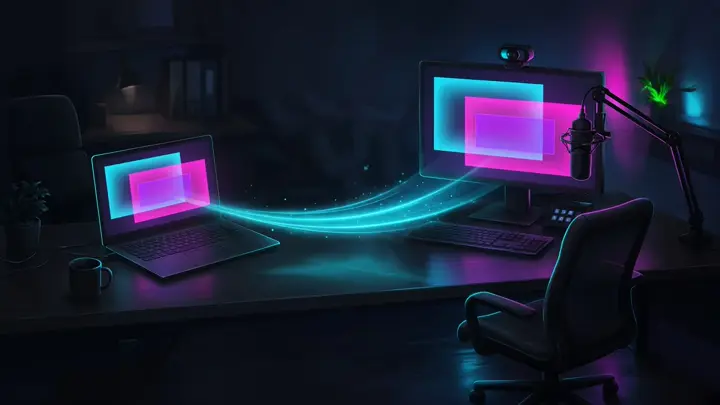
Invite a Producer, or open Live Center yourself. Lay out scenes and overlays from a browser. When Studio is open, Switch takes a scene live. When it is closed, pick a cloud profile on that tab, and Studio picks it up next time that profile is open.
Capture devices, encode, and go-live stay in Studio on the streaming PC. Moderators stay on chat until you promote them.
Sign in on the streaming PC so a cloud profile exists. Get Studio from Downloads. The Producer tab lights up from that profile, or live when Studio connects.
Owners and admins already have the tab. To give someone else the Producer tab, invite them as Producer in Settings, Staff. They sign in on their own account and land in Live Center.
Open a scene without cutting program. Move overlays and captures, show or hide layers, mute or duck audio, or create an element. Switch takes the scene live when Studio is connected.
While Studio is connected, the tab controls the live canvas. When Studio is closed, it edits the cloud profile that Studio will load later.
Prepare a scene in the tab while the program stays on its current scene. Your Producer can switch to BRB without using the streaming PC.
The same tab edits a cloud profile you pick. Open Live Center from a laptop at work, or Edit in Producer from Studio in the control panel. Studio loads those edits the next time that profile is open on the streaming PC.
Capture devices, encoder, Scene Builder, and Go live stay in Studio. Producer is the overlay layout, not a remote desktop of the whole app.
Click a scene to open that layout here. That does not cut Studio. Switch when that scene should go on air.
Move and resize overlays or capture layers on a schematic canvas. Add an overlay you already have, or remove a layer from the scene.
Create a new element from the tab. Edit opens the existing editor, including Element Builder. Delete and regenerate overlay URLs stay with owners and admins.
Invite steps are in the staff guide. Studio setup is in the Studio guide.
No. Moderators run chat, timeouts, and automod. They do not get the Producer tab until you invite or promote them as Producer in Settings, Staff.
Go live from Studio, work across your connected channels, post to Discord, and create a custom look.