StreamChum Producer launches
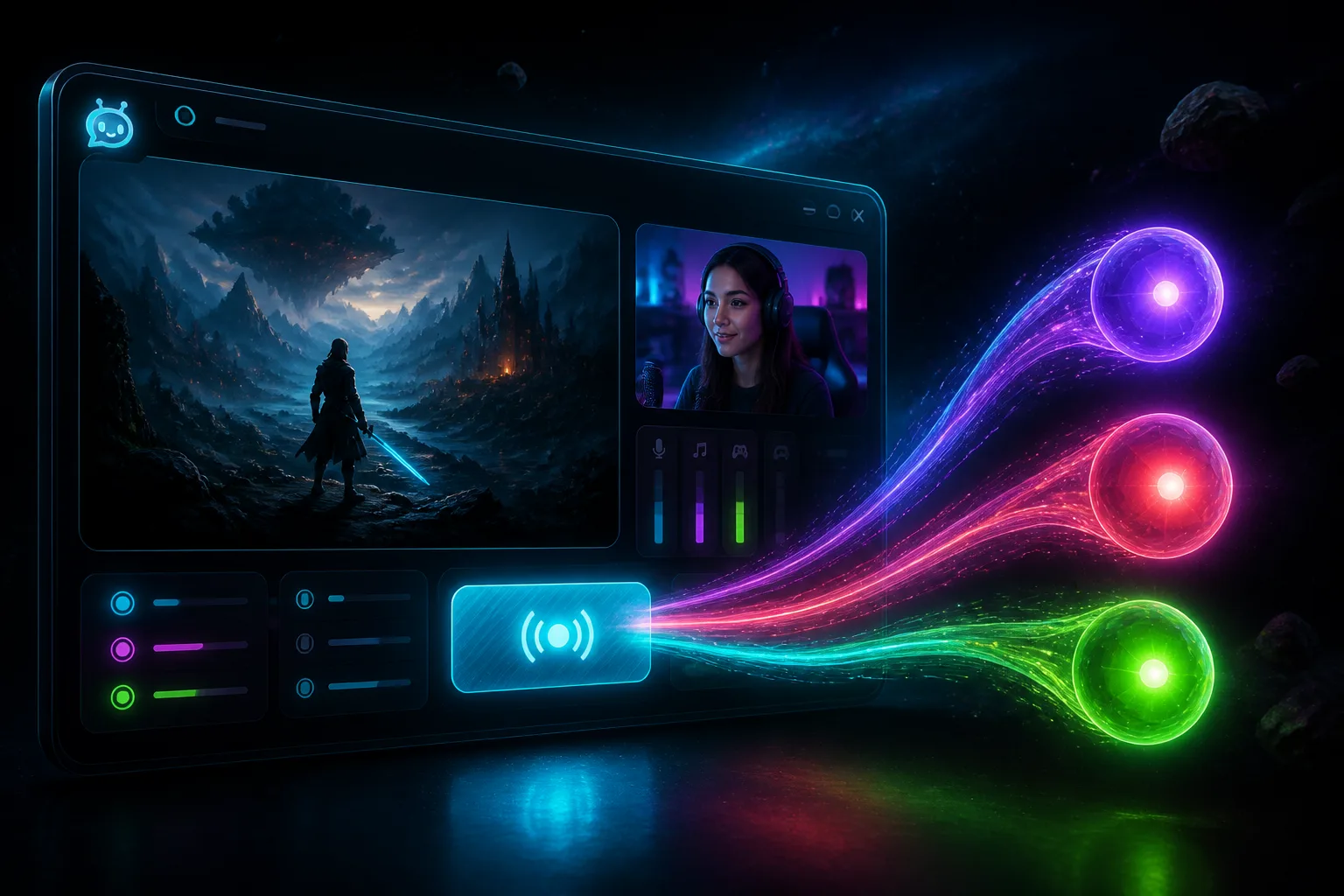
A Live Center tab that remotes Studio overlays. Invite a Producer, or open it yourself from another device, even when you are not at the streaming PC.
Takeaway
Producer is live. It is a tab in Live Center that remotes Studio overlays: scenes, layers, and layout, without sitting at the streaming PC. Invite someone to run it during the stream, or open it yourself from a laptop. If Studio is closed, pick a cloud profile on that tab, and Studio loads those edits the next time that profile is open.
Overlays, in the browser
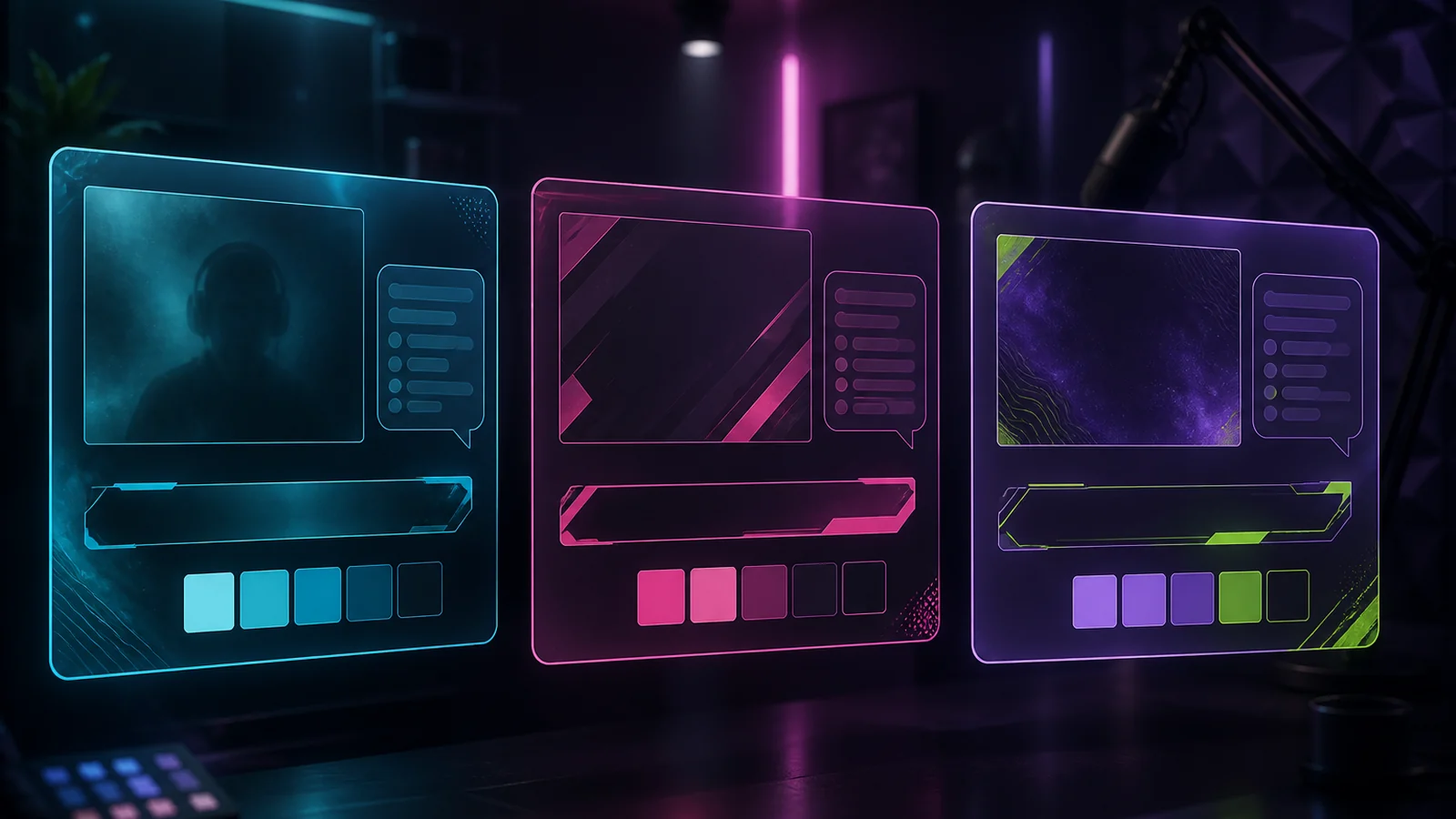
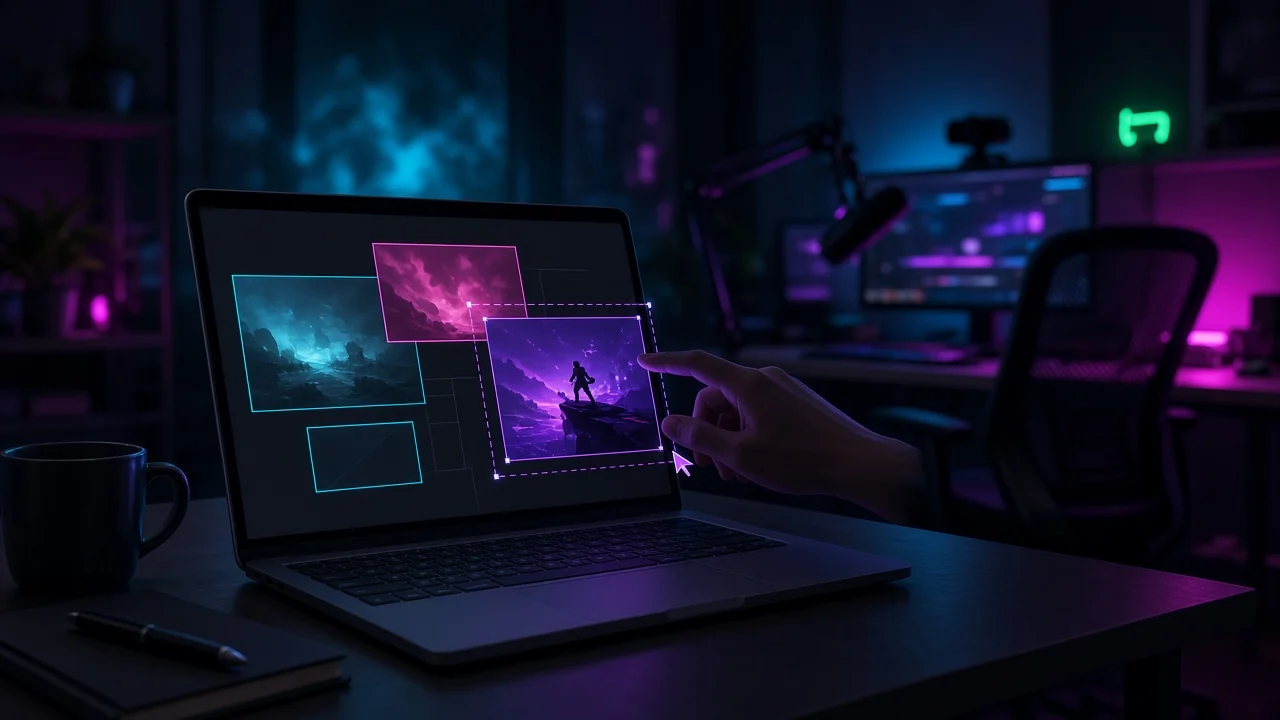
Producer is not a second Studio install. Owners, admins, and anyone you invite as Producer get a Producer tab next to chat in Live Center. Open a scene, move overlays and captures, show or hide a layer, add an overlay you already have, or create a new element. Studio on the streaming PC still owns capture devices, encode, and go-live.
- Edit any scene without cutting the one on air.
- Move and resize overlays and captures. Show, hide, or remove a layer.
- Add an overlay you already built, or create a new one. Edit opens the element editor, including Element Builder.
- Switch takes a scene live when Studio is connected.
Take a scene live without cutting program
When Studio is open and paired, the Producer tab remotes that canvas. Click a scene to open that layout here. That does not cut program. You (or they) hit Switch when that scene should go on air. Prep BRB while Playing is still up, then switch. Chat never sees the draft.
Work on the setup when you are not at the PC
Studio does not have to be open. You still open Live Center from a phone or a laptop, pick a profile, restyle an overlay, and leave. StreamChum writes that Studio cloud profile. The next time that profile is open on the streaming PC, those edits are already there. Capture devices, encode, and go-live still wait until you are on that machine.
What stays on the streaming PC
Producer is overlays, not the whole Studio window in a browser. The person you trust with scenes should not be picking your GPU encoder from a cafe. They can drag the camera overlay. They cannot change which camera Studio is capturing.
- Adding or changing capture devices stays in Studio.
- Encoder, canvas presets, and go-live stay in Studio.
- Scene Builder (describe a layout in a sentence) stays in Studio.
- The OBS plugin is not on that tab.
- Delete and regenerate overlay URLs stay with owners and admins. Producers can copy a URL from the element editor because that seat is trusted.
Invite a Producer, not your password
A moderator stays a moderator until you promote them. Moderators run chat, timeouts, and automod. They do not get overlays. Open Settings, Staff, and invite (or promote) someone as Producer. They sign in on their own account and land in Live Center. Clicks are in the staff guide.
- Owners and admins already have the Producer tab. You can use it yourself from another device.
- Producer uses the same staff-seat pool as mods. Plus includes 5 seats, Pro includes 15.
- Studio has to be signed in on the streaming PC first so a cloud profile exists. Then the tab lights up from that profile, or live when Studio connects.
Free includes Live Center and Studio on one platform. Producer is a staff role, not a separate product. Creative AI credits for describing a new widget stay at 0 until Plus or Pro.
The pitch is on the Producer page. Get Studio from Downloads. Setup is in the staff guide and the Studio guide.
Keep reading