Give each Studio profile its own look
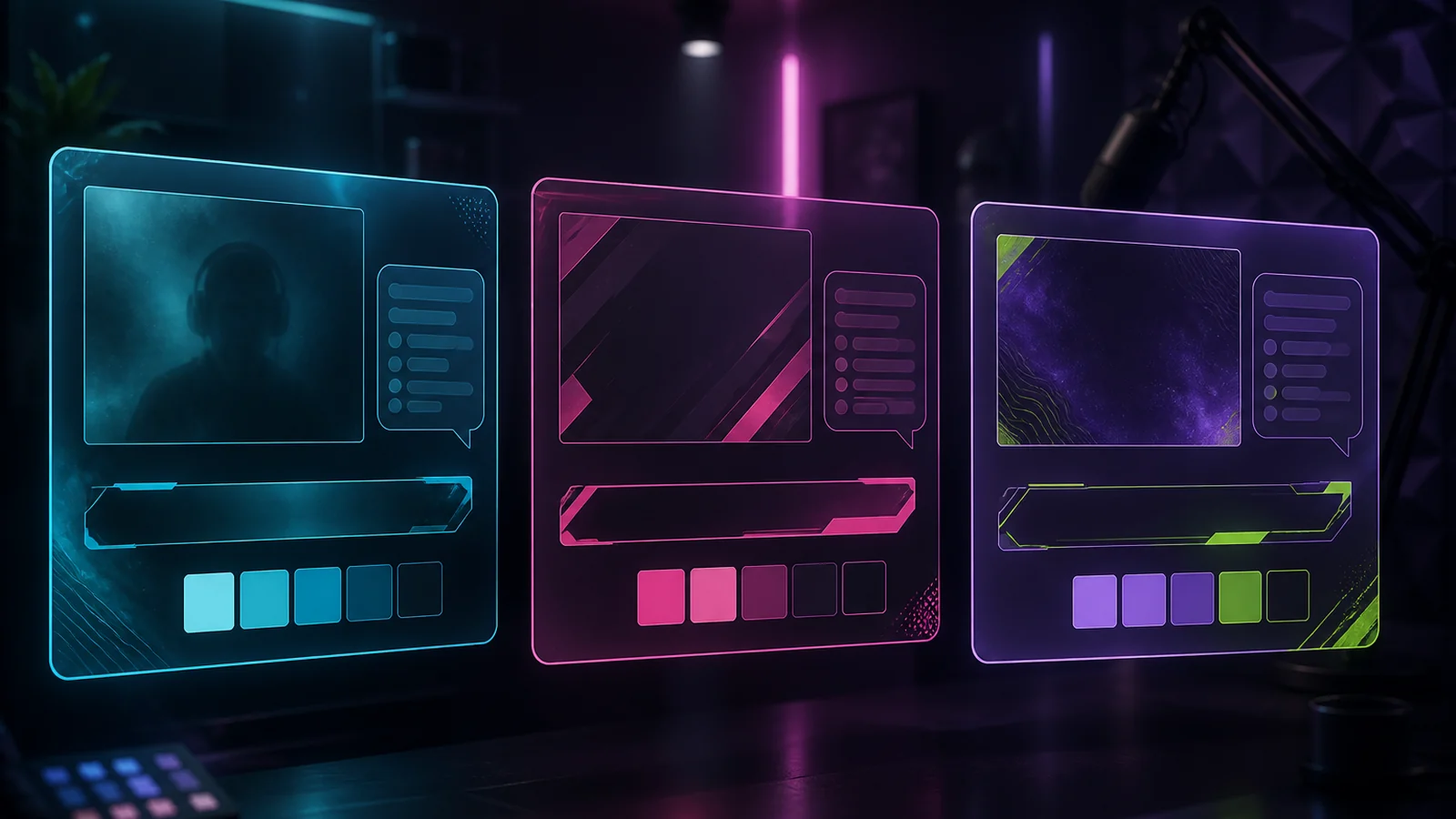
Create a profile, lock a theme from a name, a vibe, or a picture, and new scenes pick that look up. Ranked and Just Chatting stop sharing leftover overlays.
Takeaway
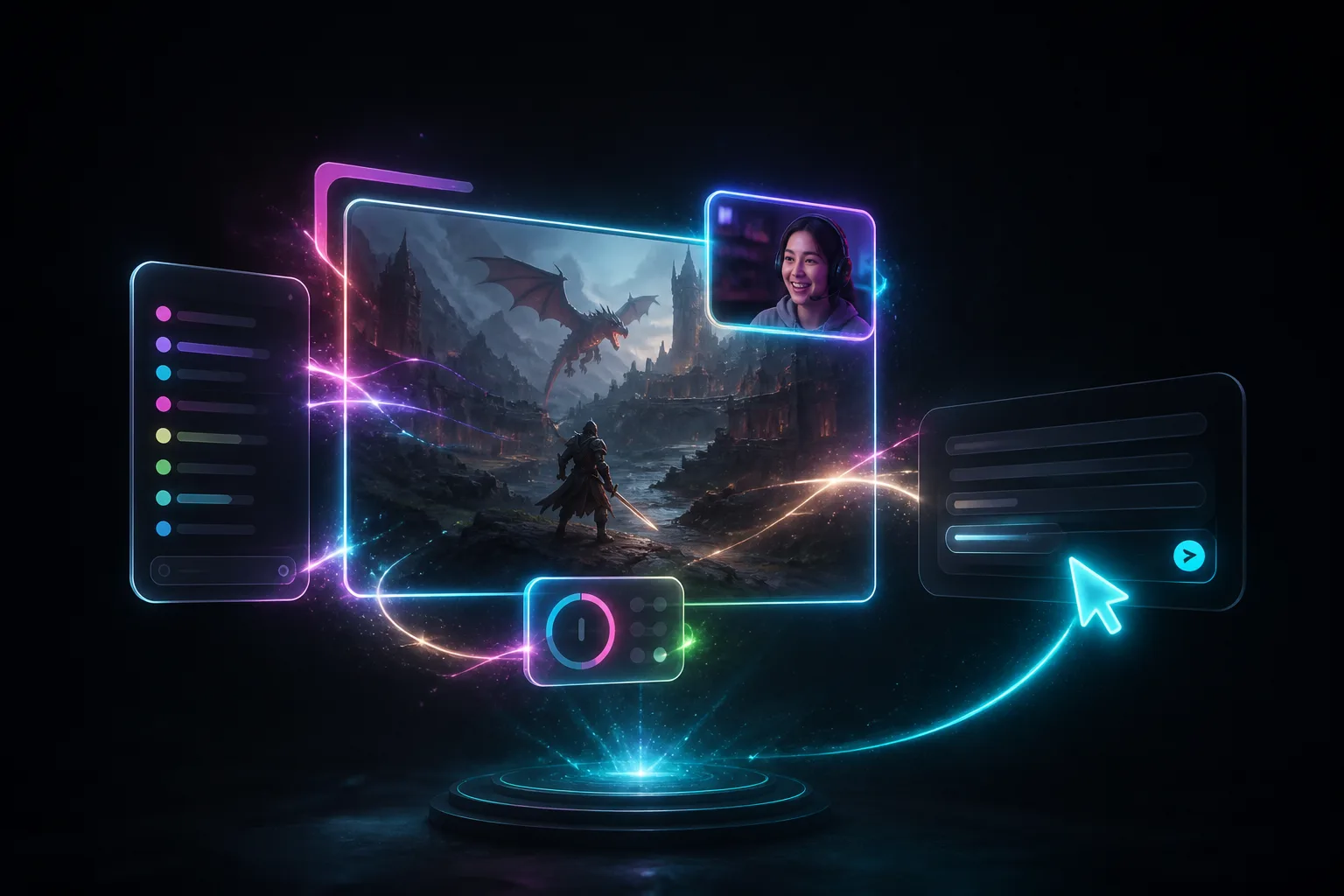
Studio profiles can carry a theme now. You create a profile, lock a look from a name, a vibe, and optional pictures, and that card sits in the header. When you ask for a new scene, Studio asks once whether to use that theme. Yes is the default. Chat, alerts, and a BRB stop looking like three different packs.
A profile is the scenes, not the bitrate
If you came from OBS, a profile is canvas size and encoder settings. In Studio a cloud profile is the scenes you actually air, plus the visual identity those scenes share. You can keep more than one. Switching profiles loads that setup. It does not dump ranked HUD onto Just Chatting.
Lock the look when you make the profile
New profile lives in the Studio header. You name it, then you pick how the overlays should look:
- Generate a themed collection in the same wizard: a short name, a vibe, optional Look / Logo / Character pictures. Studio writes a brief, colours, type, and a reference image for the pack.
- Reuse a themed collection you already locked, if this profile should match a pack you already have.
- Pick a marketplace pack that already has Studio scenes. Studio installs it on your account, then those scenes land on the profile you just named.
- Start blank. You land on an empty Main scene and theme it later.
If you have a mood picture and you cannot write a design brief, attach it as a Look image. Studio can draft the look-and-feel paragraph from that picture. A Look file is mood and palette, not a PNG stamped onto every overlay. Logo and Character files sit until you actually ask for them. Character art can also style new sprites instead of pasting the same file everywhere.
After that, the header look card shows the profile name and its theme: the reference image and the palette. Click the card to switch profiles. The cog next to a profile opens Edit theme, where you change the name, vibe, or attached pictures, or regenerate the look. The header controls are in the Studio guide. Branding a pack by hand still lives in Elements.
Why that is actually useful
You lock the look once, then stop re-explaining your brand every time you ask for a starting-soon screen. Without a theme, Studio can invent a new purple pack while chat is still last month's green. With one locked, a BRB matches the chat that is already in the pack.
- You lock the look once. New scenes in that profile inherit it instead of inventing a second pack mid-plan.
- Different streams keep different looks. Ranked, Just Chatting, and a collab do not steal each other's overlays.
- A seasonal look can live on its own profile. Halloween gets its own scenes. Tuesday goes back to the usual one.
- You can still pull a widget from another collection when you want that one alert, without moving everything.
Scene AI already knows the theme
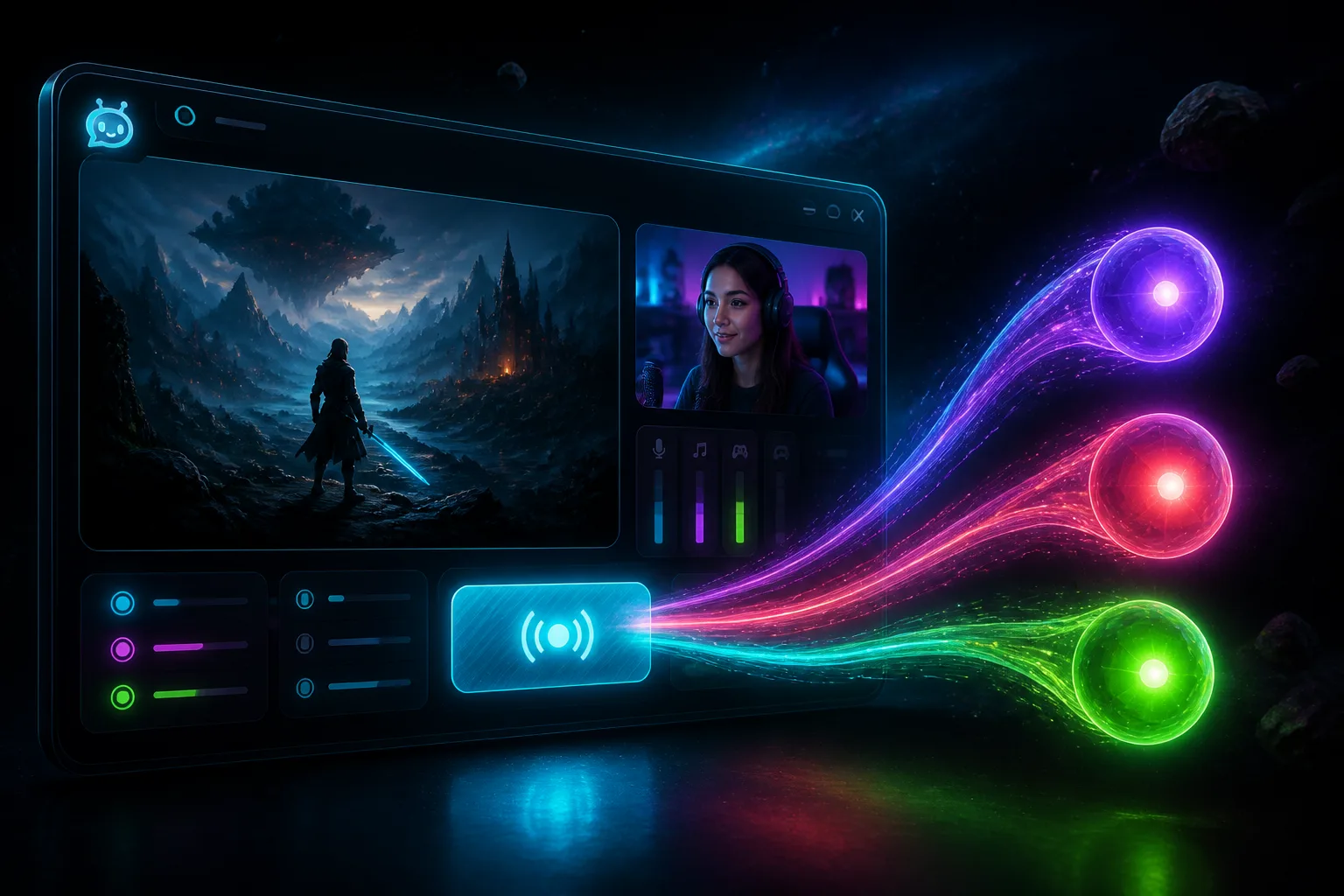
The Studio AI pane still builds the picture from a sentence: game full frame, camera bottom-right, live chat on the left. What changed is the first question on a new scene. If this profile already has a themed collection, it asks once: use that profile theme as inspiration? Yes is the default. No means standalone, or pick another pack. It does not generate a fresh theme in the middle of a plan unless you want one.
A theme is the look the scenes share. You still toggle destinations and hit Go live in Studio.
Locking a collection look does not spend creative AI credits. New scenes and new overlays still do. Free includes Studio on one platform. Creative AI credits start at 0 until Plus or Pro.
Get Studio from Downloads. Setup is in the Studio guide.