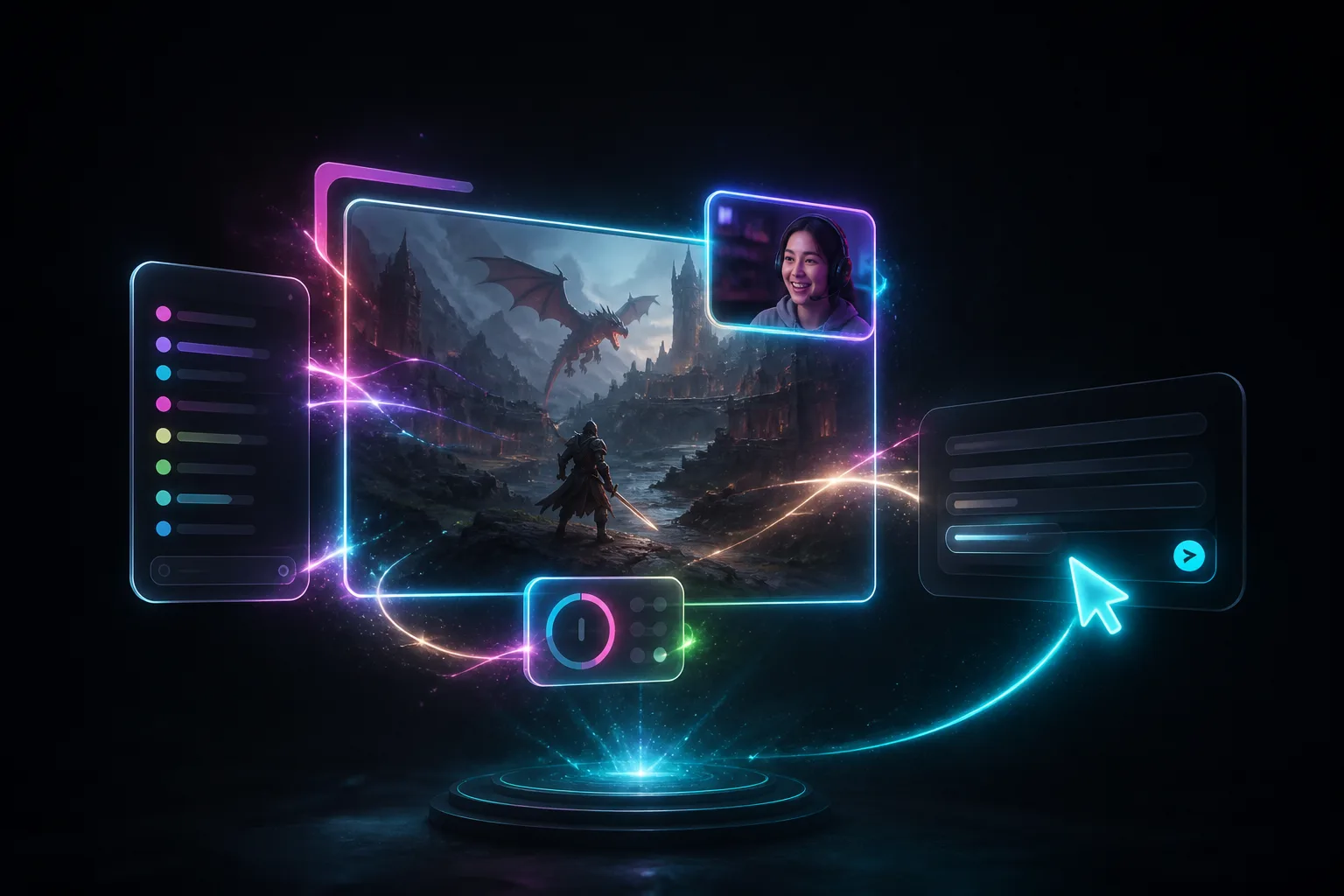
Your overlays can hear chat now
Describe a custom element that listens to live chat: hangman, floating bubbles, on-screen lines, typing games. Not a second chat box. Ask Element Builder.
Takeaway
Custom widgets you describe in Element Builder can now listen to live chat. Ask for hangman, floating bubbles, on-screen lines, a typing game, and the overlay gets filtered lines from Twitch, YouTube, and Kick. This is not a second scrolling chat box. The live feed is still the Chat element. The new thing is a widget that actually does something with what people type.
This is not another chat box
You already have a live chat overlay: fonts, fades, hide bots, hide ! commands. Keep that for the feed. A custom element is a different job. You tell Element Builder you want chat on this widget, and it listens for filtered lines so the overlay can animate, keep score, or play a game. Chat Commands still drive !token games. If viewers should type !join, that is still a command.
Make chat look like part of the stream
A scrolling list is useful. It is also the same list everyone else has. Once a widget can hear the line, you can ask for motion instead of a log.
- Floating bubbles: a name and a short line drift up and pop. Good over a cam, or in a corner the game is not using.
- On-screen lines: one message slams in, holds, and leaves. You read it in the picture, not in a sidebar.
- A ring of names around the webcam that lights up when that person talks.
- A quiet ticker of first-time chatters, so a new name gets a moment without filling the whole screen.
Games chat can play without a !command
A lot of overlay games wait for !guess or !letter. That works, and Chat Commands are still the right tool when you want a token. The new path is the other kind: people just type in chat. Hangman, a word guess, a typing race. The widget reads the line. Known bots and your own messages stay out by default, so a Nightbot lurk and your !so do not count as a guess.
- Hangman or a word-on-stream board. Chat types letters. The overlay fills them in.
- Guess the word, Wordle-style. Short phrases only, so a whole paragraph does not count as a guess.
- A typing race: the word is on screen, first clean line wins.
- Trivia where the answer is typed in chat, no !answer prefix.
You still pick which lines count
Filtered means you are not dumping the whole room into the widget. Hide known bots, hide ! commands, hide your own messages. Limit it to first-time chatters, or to regulars. Match any line after those rules, or only letters and short phrases, or only lines that contain a word you care about. Ranked is loading and you want a giant GO stamp when chat types go: set match to contains go. A bot's !lurk does not fire, because commands are hidden.
Other things worth asking for
If the overlay needs the text of the line, you can describe the bit. You do not need a new product for each one. A couple of chat-listening widgets can run at once. Keep the live feed as Chat.
- A or B on screen. Chat types A or B. The bar fills. No poll extension.
- A welcome burst only for first-time chatters. Regulars keep talking in the normal box.
- A regulars board that only lights up people who have been here before.
- You talk, they type: live captions on the mic, chat bubbles from the room, same scene.
- A sub alert that already exists, plus a chat game in the corner for the downtime between events.
Describe it, test it, go live
This is the same Element Builder you already use for countdowns and alerts. Say you want chat on that widget. If the pack already has a look, it will try to match. You can send a test chat line from the web editor or from Studio, the same way you test an alert, so you are not waiting for a real message. Clicks live in the overlays guide.
A sentence is enough to start: floating chat bubbles over my cam, glass, hide bots and commands. Or hangman for BRB, letters from chat, neon purple. Then tweak. Then put the URL on the scene.
Element Builder turns spend creative AI credits on Plus or Pro. Free includes Studio on one platform, with credits at 0 until you subscribe. A custom widget that listens to chat is still not a live chat overlay. Use the Chat element for the feed. Use Chat Commands when you want a !token.
Build it in Elements. More on vibe-coding a widget is on Overlays. Setup is in the overlays guide.