Theme packs can remember your Studio scenes
Save Intro, Playing, and BRB onto a themed collection. Restore them on another PC, or install a marketplace pack from Studio. OBS still gets the overlays.
Takeaway
A themed collection can keep your Studio scenes now. Save Intro, Playing, and BRB onto the pack, restore them later, and pick camera and game on that PC. Marketplace packs with those scenes are in Studio: click one, and an install can set the profile up in one go. OBS still gets the matching overlays as browser sources. Scene setup there is not in yet.
The pack used to be the widgets
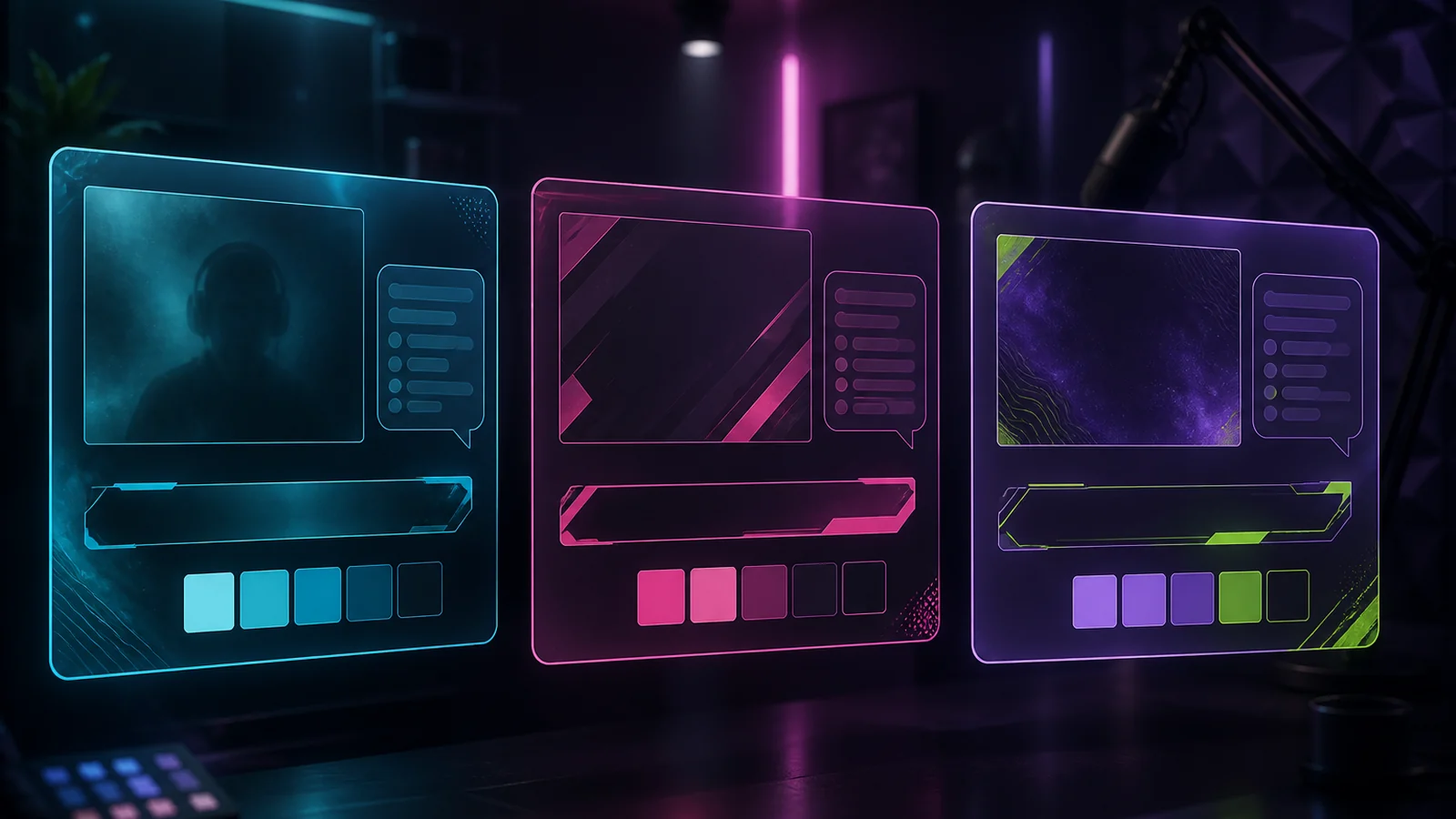
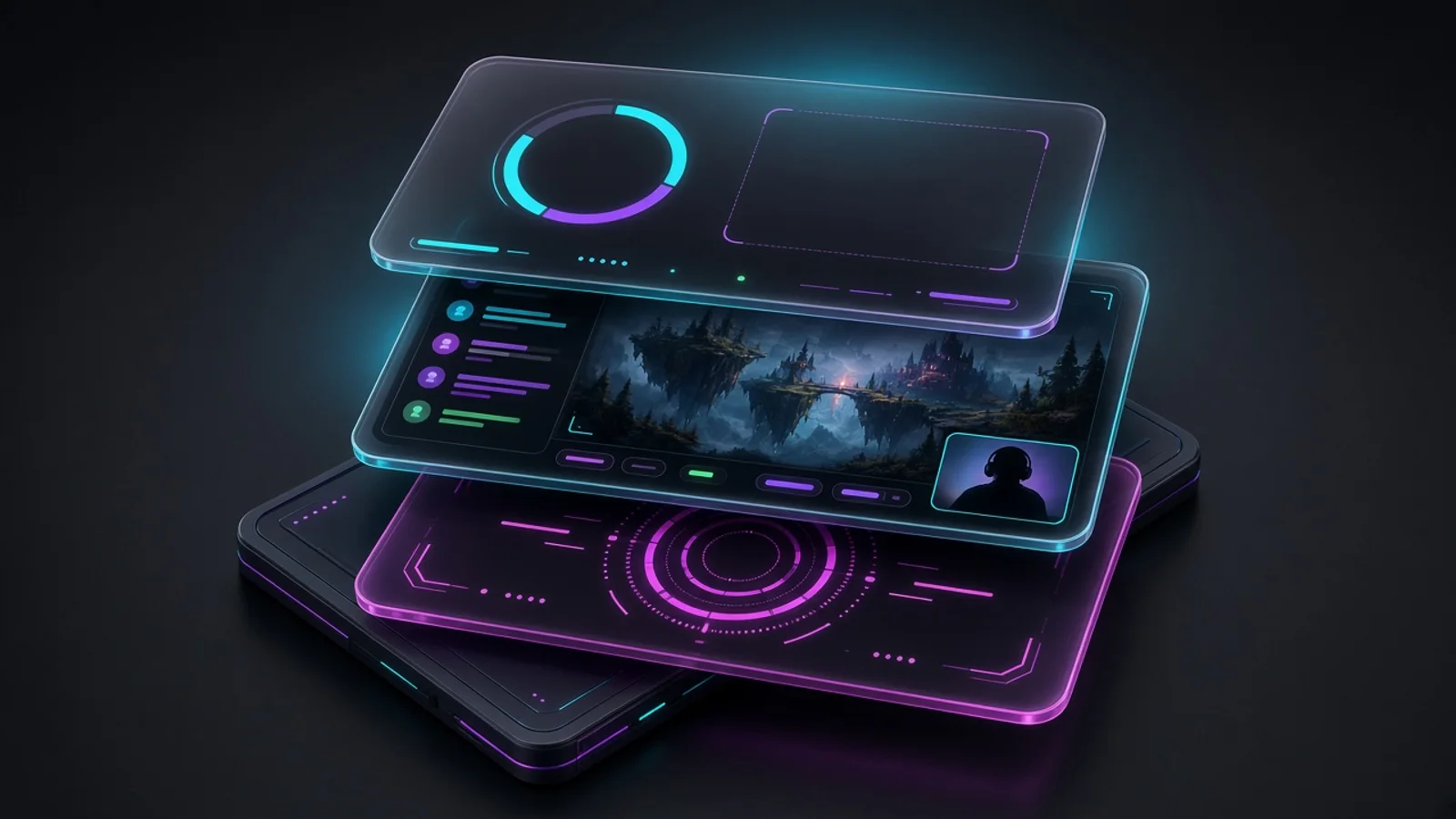
A themed collection already locked a look: chat, alerts, and a starting-soon graphic that actually match. The scenes you air in Studio lived on the profile. You rebuilt Intro and Playing on the other PC, or you lived with a blank Main. Save scenes to pack, in Edit theme, writes this profile's layouts onto that collection. Restore the pack, and the scenes come back with it.
- Overlays stay as pack members, in the same spots.
- Camera, game, and window captures become empty slots, so the next PC can pick its own devices.
- Reuse the pack on a new profile, or install it from the marketplace, and those scenes seed the layout.
What restore actually does
A new Studio profile can reuse a themed collection you already locked. If that pack has scenes, you do not land on a blank Main. You land on Intro, Playing, BRB, whatever you saved. Edit theme on that profile changes the look, not the scene list you already built. Clicks for Edit theme are in the Studio guide.
Marketplace packs that set Studio up
Installing a marketplace pack that already has scenes creates a Studio profile with those layouts. It does not switch you off the profile you are on. You switch when you want that look. Published packs on free stream elements show those Studio scenes, so you can see the layout before you install. Browse them from Studio, click one, pick camera and game, go live.
OBS still gets the overlays
If you are still in OBS, the same themed collections still work. Install the pack, copy each overlay URL, paste them as browser sources. Chat, alerts, and a starting-soon graphic still match. You just do not get Intro, Playing, and BRB laid out for you. Scene setup for OBS is not in this version.
Saving scenes onto a pack does not spend creative AI credits. Installing a pack does not either. Free includes Studio on one platform. Credits for describing a new widget start at 0 until Plus or Pro.
Get Studio from Downloads. Setup is in the Studio guide. Packs are on free stream elements.
Keep reading