Studio can remove your background without a green screen
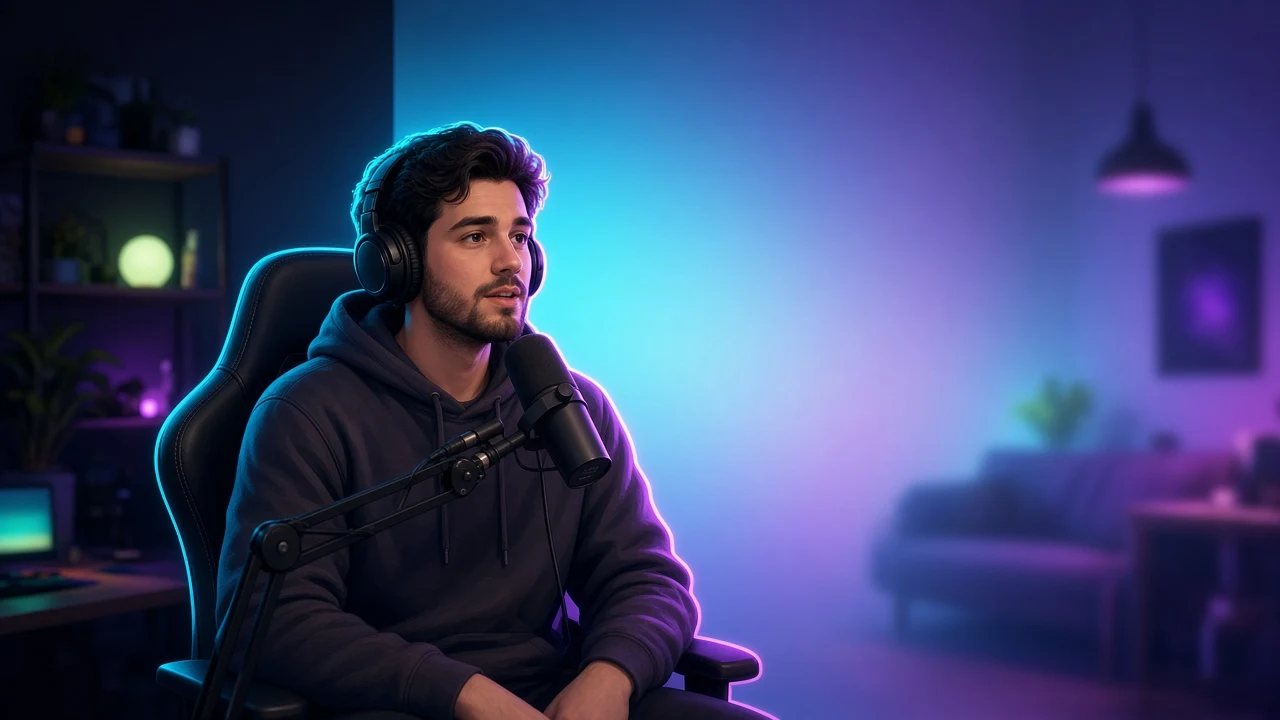
Remove the room behind a camera or phone source, or blur it in place. Studio now has person segmentation alongside its physical green-screen controls.
Takeaway
StreamChum Studio can now remove the background from your camera without a green screen. You can make the room transparent or blur it in place, then keep building the scene behind yourself. It works on supported Windows PCs and Apple Silicon Macs.
Your camera becomes part of the scene
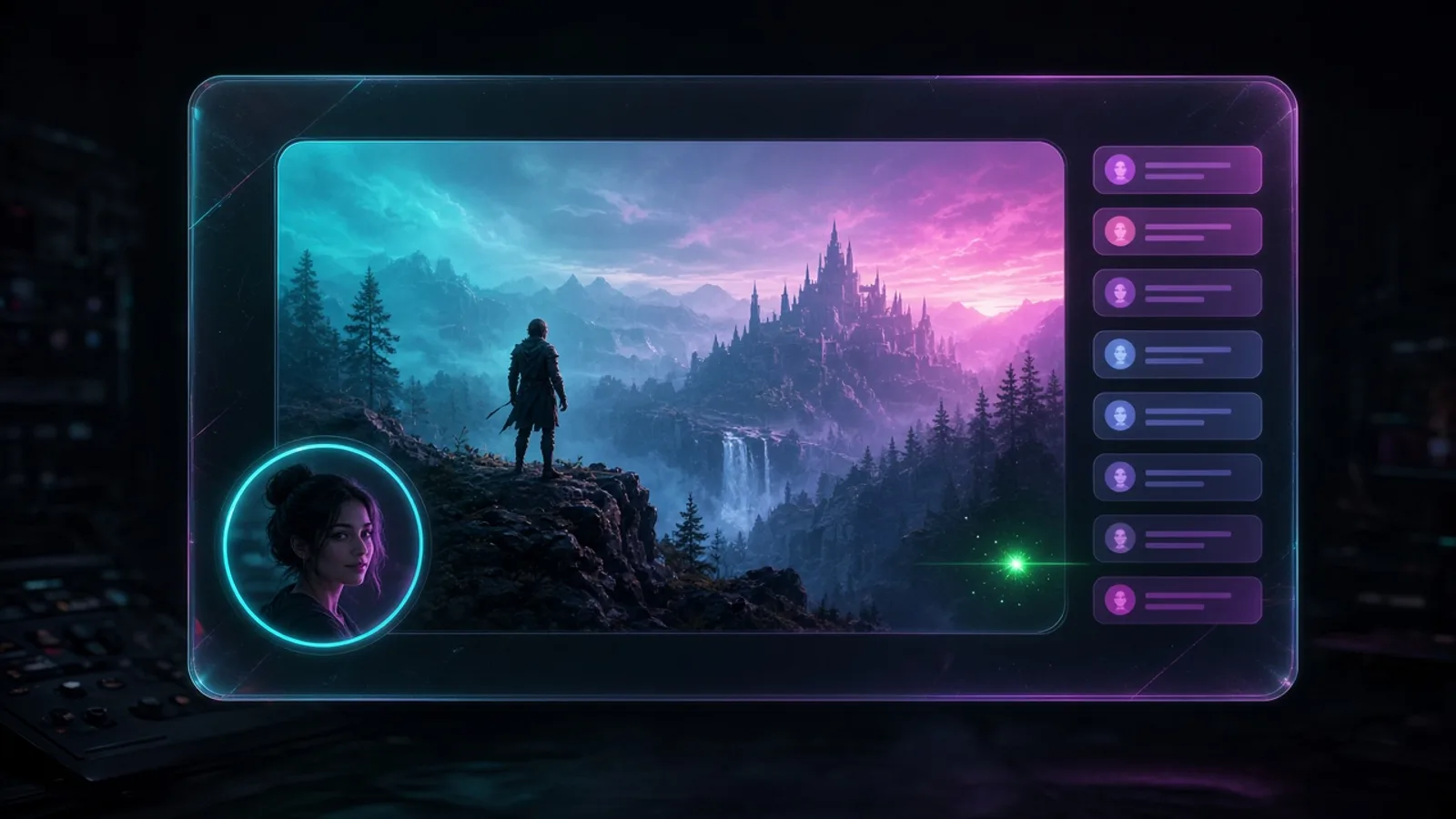
A normal webcam arrives as a rectangle. That is fine for a framed camera layout, but it gets in the way when you want your game, chat, or artwork to sit around you. Remove separates you from the room and makes that background transparent. Every layer behind the camera can show through, so your camera feels like part of the composition instead of a box placed on top.
Blur is the less dramatic option. It keeps the room in the picture while softening the details. That is useful when you want a natural camera shot without showing every shelf, cable, or person moving in the background.
It works on camera and phone sources
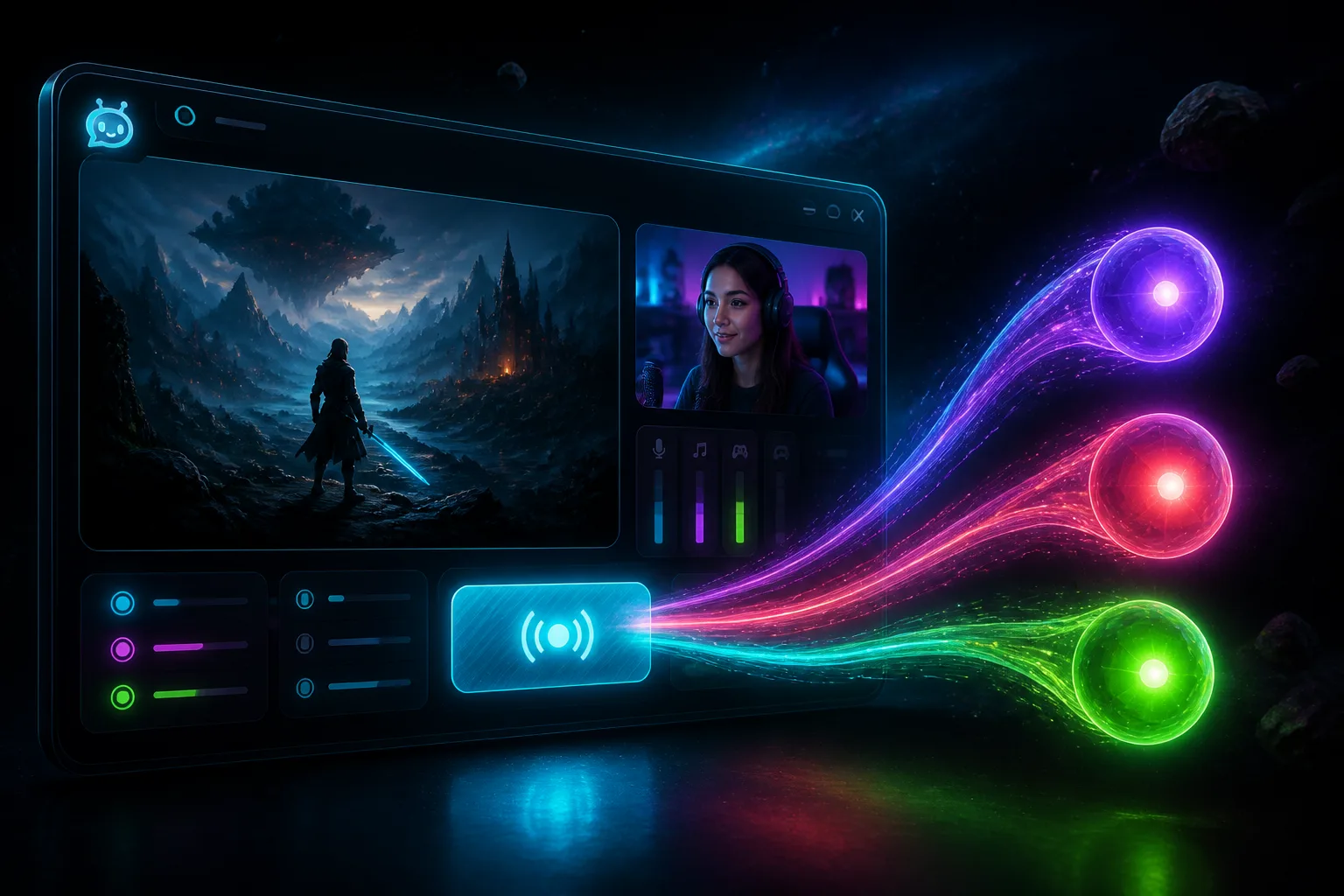
Background controls are available for a camera layer and for a phone camera sent into Studio. Select the source, open Background, then choose Remove or Blur. You can still move, crop, scale, and layer that source like the rest of the scene. The setup clicks are in the Studio guide.
Windows and Mac take different routes
On Apple Silicon, Studio uses the person segmentation built into macOS. On Windows, it uses NVIDIA Video Effects on an RTX 2060 or newer. The first time you open Background on a supported Windows PC, Studio downloads NVIDIA's official package, which is about 1 GB, and installs it. Windows may ask for permission. If installation fails, the Background card has Retry.
The Background control is hidden on unsupported Windows GPUs. Mac support is for Apple Silicon. StreamChum Studio does not pretend a processor can run this well when the required segmentation system is missing.
A physical green screen still has a job
Person segmentation is convenient, especially in a normal room, but hair, fast hands, translucent objects, and poor lighting are difficult for any automatic cutout. A well-lit physical green screen can still give you the cleanest edge. Studio keeps Chroma key as a separate control for that setup.
For automatic removal, give the camera a clear view of you and avoid clothing that blends into the wall. A little separation between you and the background helps. Check the result at the size viewers will actually see, because a rough edge that looks obvious full screen may disappear in a smaller camera layout.
Build behind yourself
Once the room is transparent, the useful question is what belongs behind you. Keep the game readable. Let an alert appear beside you instead of across your face. Put a subtle shape or glow behind your shoulders when the game is visually busy. Background removal gives you room to compose, but the stream still needs a clear subject.
The exact controls are in the Studio guide. Download Studio for Windows or Apple Silicon from Downloads.
Keep reading