Talk, and Studio ducks the game
When you talk in Studio, game, music, and desktop audio get quieter. Overlay alerts can stay loud. The mixer toggle is out now.
Takeaway
When you talk into the Studio mic, game, music, desktop, and app audio get quieter so chat can hear you. Mixer toggle, plus how much. Overlay alerts stay loud unless you duck that track too. It listens to the local mic level, not captions.
What it sounds like
You already talk over the game. The usual problem is the bed is a little hot, so a callout disappears. Studio now dips those tracks while you are speaking, then eases them back when you stop. You do not ride a fader.
- Game, music, desktop, window, and app audio duck by default.
- Your mic is the key. It does not duck itself.
- Browser overlays stay loud by default, so a sub sting still hits.
Alerts can stay at full volume
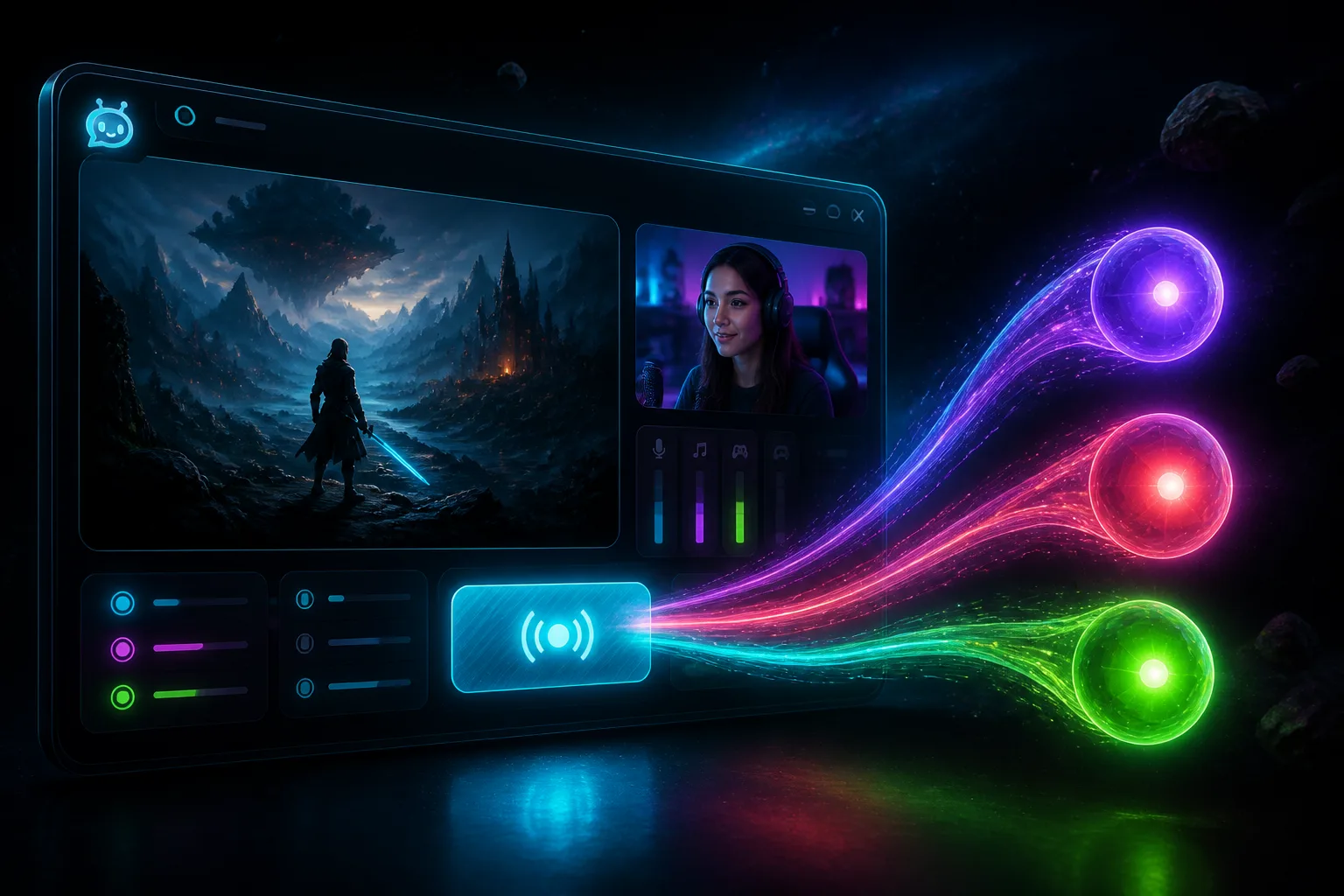
A follow or a sub should not get swallowed because you were mid-sentence. Overlay tracks are opted out unless you turn ducking on for that strip. A looping music file still ducks. A donation sting does not, unless you want it to. The game gets out of the way. The overlay sting stays loud. You still say thanks.
Turn it on in the mixer
In the mixer: Duck when I talk. Then the amount. Default is 70%. Each non-mic strip has Don't duck this if that track should stay up: a music bed you want under voice, or an overlay you already ducked and want back. Setup lives in the Studio guide.
This is the mic going above a level. It does not wait for a transcribed word. Live captions and speech-keyword alerts are a different feature, and they can run at the same time.
Get Studio from Downloads. More about the app is on the Studio page.