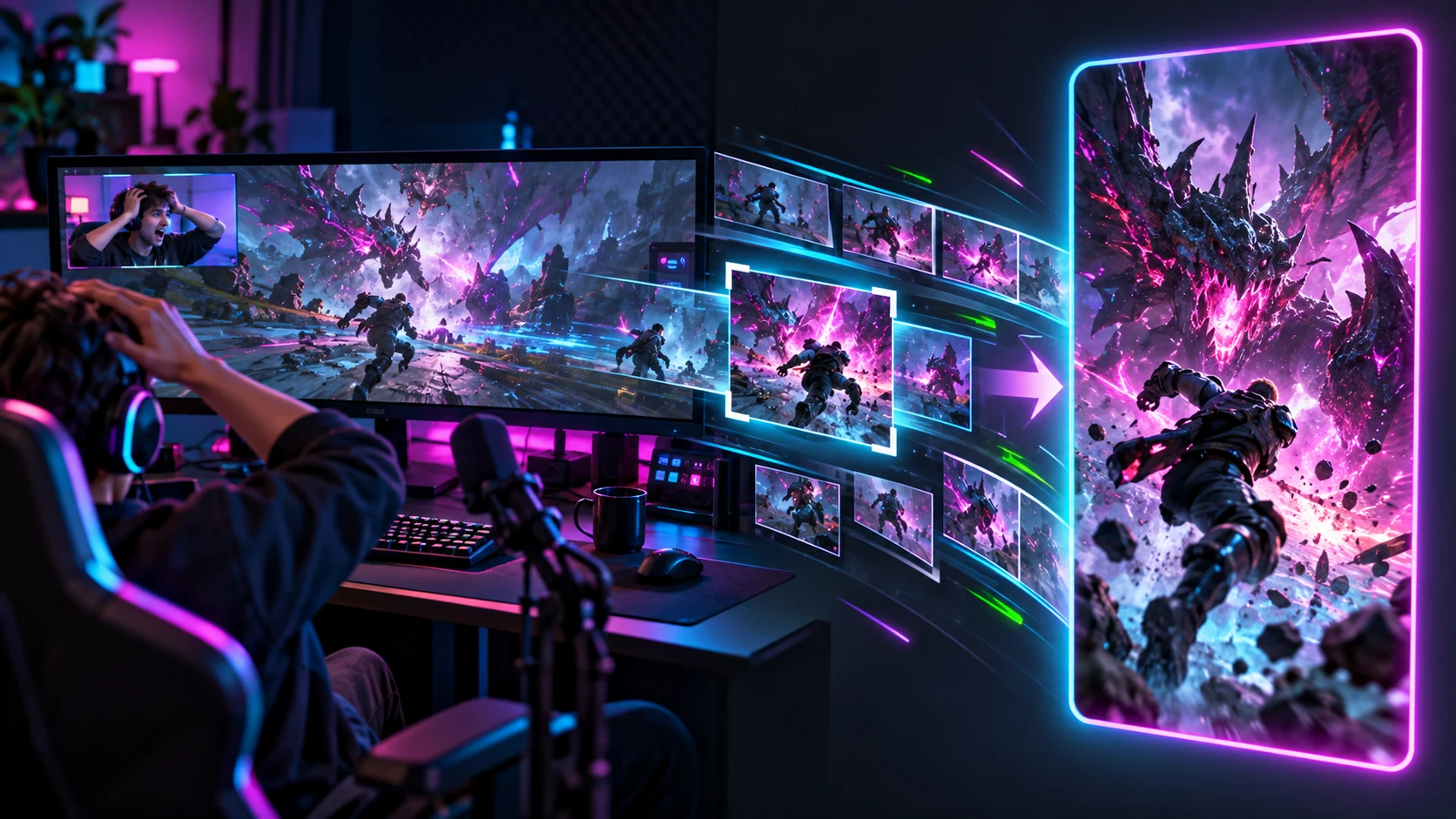
StreamChum can catch the clip and get it ready to post
Save the recent program in Studio, catch live moments automatically, and turn uploaded clips into trimmed, captioned vertical videos in Clip Inbox.
Takeaway
Clipping in StreamChum now runs from the live moment to the file you post. Studio can save what just happened, Actions and live signals can catch moments for you, and Clip Inbox can trim the upload, build a vertical version, burn in captions, and send it to a connected social channel.
Save what happened before you pressed the button
Turn on Keep recent video ready for clips and Studio holds a bounded window of the encoded program in memory while you are live. Press Save Clip after the goal, joke, scare, or mistake. Studio writes the part that already happened and can keep recording a little longer for the reaction.
You choose 15, 30, 60, or 120 seconds before the press, then 0, 5, 10, 15, or 30 seconds after it. The defaults are 30 seconds before and 10 after. The clip uses the program viewers saw, including the active scene and overlays, rather than opening another screen recorder.
The clip work is separate from RTMP delivery. Saving a moment does not make the live upload wait for the file, and repeated requests for the same moment do not create a pile of duplicate clips. If the stream stops during post-roll, Studio finishes with the packets it already has.
A button, a Stream Deck key, or the stream itself
Save Clip is in the Studio header, and the same job can run from an Action. That means a Stream Deck key or an enabled moderator command can save the moment without somebody reaching for the mouse.
Automatic clip rules can also react to a chat surge, a raid, a sub, bits, a Ko-fi tip, a Play join, a speech phrase already used by an Action or Event, or a jump in viewers. A chat reaction can use a recent Studio caption as the reason, which makes the clip easier to recognize later. Automatic clipping has guardrails: a stream keeps at most 20 automatic moments, with at least a minute between them. If Studio or recent-video capture is unavailable, StreamChum keeps a timestamp marker instead.
The file remembers why it exists
Local clips go into a Clips folder inside your selected recording folder. Studio's recent clips drawer can reveal the file or copy its path. Each clip also carries context that would be painful to reconstruct tomorrow: the save reason, its range in the stream, the scene, the active game, nearby chat and audience information when available, and whether captions exist.
Saving locally works on every plan. Plus and Pro can upload clips into the private Clip Inbox. A local-only clip stays on that Studio computer until it uploads. If that copy of Studio is open, Clip Inbox can ask it to upload the file.
Clip Inbox is where the moment becomes an edit
Uploaded clips appear together in Clip Inbox and on the matching Past Stream page. Rename the useful ones, favorite the moments you want to keep, set in and out points, or delete the misses. Favorites remain in the inbox when the rest of that stream ages out with your plan's history.
Full downloads the desktop clip. Stacked creates a portrait composition with a face crop and a gameplay crop beside the preview. If Studio captured timestamped speech, you can burn captions into that render using Classic, Clean, Neon, or Box. The original and each finished version keep their own private playback and download controls.
Post from the same clip card
Export can download the mobile file or post it to a connected YouTube, TikTok, Instagram, or Snapchat account. Those accounts connect in Settings, Channels for clip sharing. They are not additional live destinations. After a post, the clip card shows the views, likes, and comments returned by that platform. Snapchat returns views only.
Social platforms still set their own limits. TikTok apps waiting for audit can post as Only me. Instagram needs a professional account linked to a Facebook Page, and broader posting depends on Meta app review. Snapchat needs a Public Profile and accepts clips from 6 to 60 seconds. YouTube uploads use the channel already connected for go-live.
Capture first, decide what deserves an edit later
The useful change is not that every live reaction becomes content. It is that saving a possible moment no longer interrupts the stream, and the reason for saving it stays attached. After the broadcast, you can look at the clip beside its chat and stream context, then decide whether it deserves a clean trim and a vertical version.
Setup and clip controls are in the Studio guide. Download Studio from Downloads, or read why a clip still needs an edit before posting it.
Keep reading